

How to Use TradingView: A Beginner’s Guide to Charts, Plans and Alerts
Want the daily routine? Get the free 15-Minute Swing Trader’s Checklist. Get it free →
Set up a clean chart, scan for stocks and let alerts do the watching, plus the sums on whether the free plan is enough
Published: 17 October 2026 · Last updated: 17 October 2026 · By Spencer Li, CFTe
Disclosure: one link in this post is our TradingView referral link, marked “(referral link)”. If you sign up for a paid plan through it, Synapse may earn a referral reward. TradingView did not pay for this post or review it.
TradingView is charting software that runs in your browser and on your phone. You use it to look at price charts, add indicators, scan for stocks and set alerts. You do not trade through it in this guide. You place the trade with your broker.
So how do you use it? Start with three jobs: chart, scan and alert. Set up one clean chart layout you can read in seconds. Use a screener or a watchlist to find the few stocks worth looking at today. Then set price alerts so the software watches the levels and you do not have to. The free Basic plan covers all three for a beginner. A paid plan starts to make sense when you hit its limits, and below are the sums that tell you when.
How do you set up your first TradingView chart?
Open the site, search for a ticker in the box at the top, and you have a chart. Now make it readable.
- Pick daily candles. If you swing trade, the daily chart is the one that matters. Choose the daily interval in the timeframe menu above the chart.
- Add a few indicators. Many swing traders use three moving averages, the 20, 50 and 200-day EMAs, to see the trend at a glance. Open the indicators menu on the top toolbar, search for “EMA”, and add each one with its length.
- Save the layout. TradingView keeps saved layouts in your account, so every chart you open looks the same.
That last step matters more than it sounds, because when every chart you open has the same layout and the same lines in the same places, you stop re-learning the screen and start reading the price. If you want to know what each indicator is actually measuring, the technical indicators guide walks through the main ones. And if you prefer bare charts, the price action trading guide shows how to read them with almost nothing added.
How does TradingView fit a 15-minute routine?
Each of the three jobs has a place in TradingView.
| Job | What you do | Where in TradingView |
| Chart | Read the trend and the setup on one clean layout | The chart, with a saved layout |
| Scan | Find the few stocks worth a look today | The stock screener, or a watchlist |
| Alert | Let the software watch your levels | The alert button on the top toolbar, or a right-click on the chart |
The order matters. Scan first to find candidates, chart each one to check the setup, then set an alert on the level that would make you act. After that, close the laptop. The alert tells you when to come back.
How do you scan for stocks in TradingView?
TradingView has a built-in stock screener. You pick filters, such as price, volume and how far a stock sits from its moving averages, and it returns a list.
You can also write your own screener in TradingView’s Pine scripting language. You do not need code to start, though. The built-in screener’s filters do the first cut well enough. Our post on how to find stocks to swing trade gives the settings for that first cut, step by step.
Save the stocks that pass into a watchlist. That list is what you chart and alert on, and it should be short. If your list has 60 names, you will not look at any of them properly.
How do you set an alert?
Right-click on a price level on the chart and choose “Add alert”, or use the alert button on the top toolbar. The shortcut is Alt + A on Windows and Option + A on a Mac. Pick the condition, such as price crossing a level, and how you want to be told: a pop-up, an email or a notification in the phone app.
Now do the sum that decides your plan. Say your watchlist has 20 stocks and you want one alert on each. The free Basic plan gives you 3 price alerts. That covers 3 of your 20 stocks, so you would be checking the other 17 by hand. The Essential plan gives you 20 alerts, which covers the whole list.
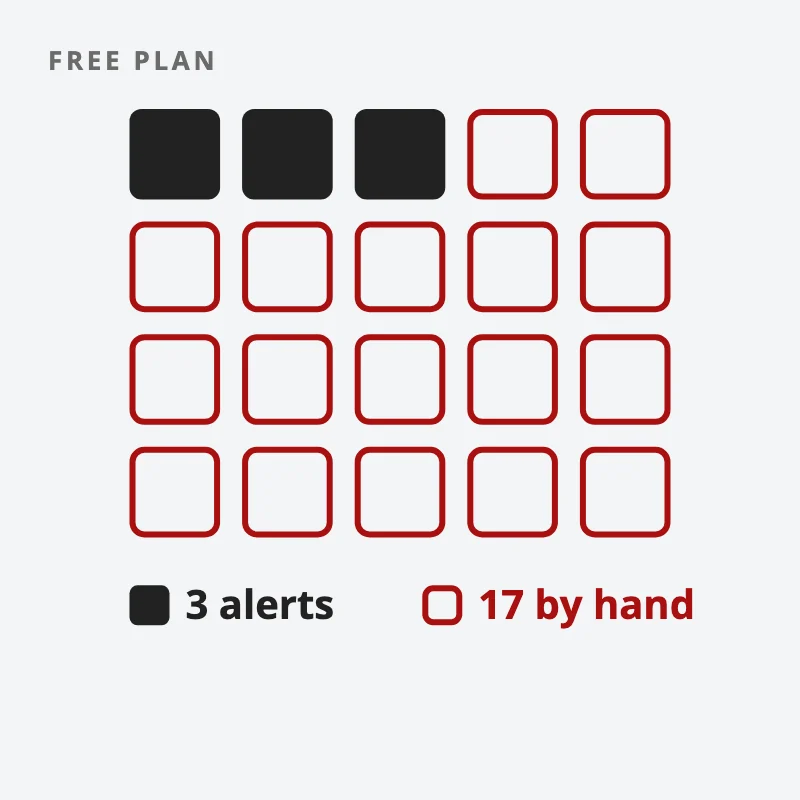
So alerts, more than indicators, are usually the first limit a swing trader hits. They are also the feature that saves the most time, because an alert sitting on a level lets you get on with your day and come back only when the price has done the thing you were waiting for.
Is the free version of TradingView enough?
For a beginner, yes. Here are the plans as TradingView showed them to a Singapore visitor on 17 October 2026, per month when billed annually.
| Plan | Price a month | Charts per tab | Indicators per chart | Price alerts | Historical bars |
| Basic | S$0 | 1 | 2 | 3 | 5K |
| Essential | S$16.65 | 2 | 5 | 20 | 10K |
| Plus | S$32.49 | 4 | 10 | 100 | 10K |
| Premium | S$64.99 | 8 | 25 | 400 | 20K |
| Ultimate | S$259.99 | 16 | 50 | 1,000 | 40K |
Read two columns first. Indicators per chart: Basic allows 2. Three moving averages are already one over that, so on the free plan you would drop one or combine them. Price alerts: as above, 3 alerts will not cover a real watchlist.
Then look at what a year costs. Essential is about S$200 a year. Plus is about S$390. Premium is about S$780. Most swing traders who need more alerts and a few more indicators will find Essential or Plus covers them. Premium and Ultimate are built for people running many charts and hundreds of alerts at once.
Prices change, so check the current numbers on TradingView’s pricing page before you decide. If you do upgrade, you can use our TradingView link (referral link). That is a referral link, so Synapse may earn a reward if you sign up for a paid plan through it. The free plan is still the right place to start.
If you want the daily routine that ties the chart, the scan and the alerts together, our free 15-Minute Swing Trader’s Checklist lays it out step by step. Get the free checklist →
Can you trust TradingView’s strategy tester?
A trader on Reddit asked exactly this in August 2026: “Is tradingview strategy tester reliable?”
The tester does what you tell it. It runs your rules over past bars and reports the result. The risk is in what you tell it. A strategy tuned until the curve looks perfect on past data usually performs worse on new data. And a test that rests on a handful of trades proves very little about what the same rules will do over the next hundred.
So treat the tester as a first filter, never as proof. Check how many trades the result rests on, include costs, and see if the rules still work on a different period. Our post on the law of large numbers in trading explains why the trade count matters more than the headline return.
So how should a beginner use TradingView?
Use it for three jobs, in order. Scan for a short list. Chart each name on one clean layout. Set alerts on the levels that matter, then step away.
Start on the free plan. When you find yourself checking stocks by hand because you ran out of alerts, that is the sign the paid plan would save you time. For the rest of the software and broker setup we use, see our trading tools and resources guide.
How many of the stocks on your watchlist could you stop staring at this week, if an alert were watching them for you?
FAQ
Is TradingView free?
Yes. The Basic plan costs nothing and gives you 1 chart per tab, 2 indicators per chart and 3 price alerts, as shown on TradingView’s pricing page on 17 October 2026.
Can you trade on TradingView?
TradingView is charting software. In this guide, you use it to analyse and set alerts, then place the trade through your broker.
Which TradingView plan is best for swing trading?
It depends on how many stocks you track. If you want an alert on each of about 20 stocks, the Essential plan’s 20 alerts fit. If you track more, or use more than 5 indicators, Plus is the next step.
How many alerts do you get on TradingView for free?
The Basic plan gives 3 price alerts, according to TradingView’s pricing page on 17 October 2026.
Is TradingView’s strategy tester accurate?
It runs your rules faithfully, but the result is only as good as the test. Check the number of trades, include costs, and test on a different period before you trust it.
Go deeper
TradingView is the tool. The routine is what makes it work. The free 15-Minute Swing Trader’s Checklist gives you the daily scan, the questions to ask before every trade, and the five rules that keep you in the game. Enter your email and we’ll send it over:
We use your email address to send you the checklist, then emails about trading and our courses. Unsubscribe in one click, any time. Privacy policy.
About the author. Spencer Li is The 15-Minute Trader and the founder of Synapse Trading. He is a Certified Financial Technician (CFTe) with 15+ years of trading, run from 70+ countries. He holds a B.Acc and B.BM from SMU. Every trade he takes is public, dated, losses left in. He teaches low-risk swing trading in 15 minutes a day, one system for any market.
Educational content only, not personalised financial advice. Trading carries risk, including loss of capital. Past performance is not indicative of future results. Synapse Trading is not licensed or regulated by MAS.
Want the daily routine? Enter your email for the free 15-Minute Swing Trader's Checklist.
Free 5-page PDF, then occasional trading emails. Education only, not financial advice. Unsubscribe anytime. Kit stores your email in the US: see our privacy policy.
Want to learn the full method? The Trading Mastery Program teaches the 4 strategies I have traded since 2011. It suits beginners and experienced traders.
Rather follow the trades as they happen? Daily Trading Signals is our Telegram channel: my trade ideas with entry, stop and exit, and every trade is public.
Questions about this post? Ask in the free Telegram channel →
Educational content only, not personalised financial advice. Trading carries risk, including loss of capital. Past performance is not indicative of future results. Synapse Trading is not licensed or regulated by MAS.

